
If you have opted in for reminders, vSure will automatically send an onboarding request reminder after the timeframe defined in your My Account settings. (My Account | My Account | Auto Remind Self Onboard)
After this, you can send addtional reminders to employees in bulk or to an individual employee.
Bulk resend
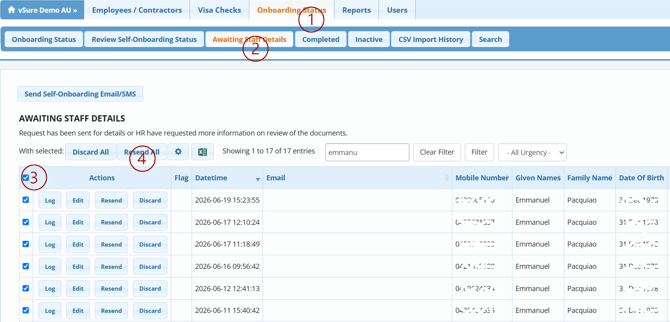
1. Go to the Onboarding Status tab.
2. Select the Awaiting Staff Details tab.
3. Click the square at the top of the records to highlight all records in the table. You can then deselect any employees you do not wish to resend to.
4. Click the Resend All button.
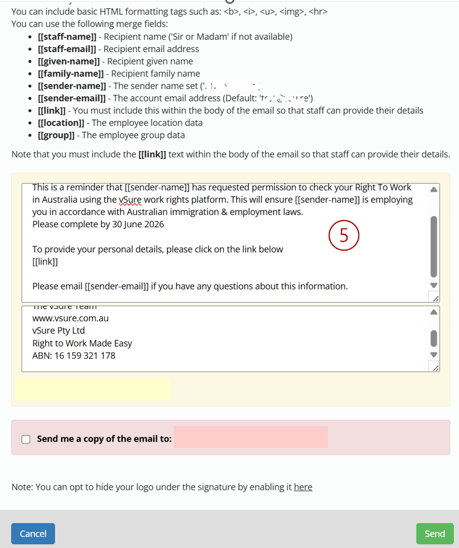
5. Update the email and SMS templates. We recommend adding a due date, as this may help prompt remaining employees to finalise there Right to Work details.
Resend to Individual Employee
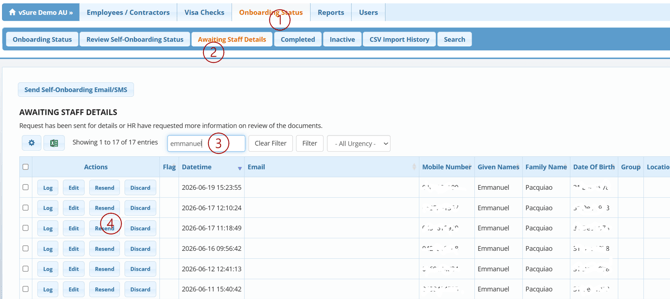
1. Go to the Onboarding Status tab.
2. Select the Awaiting Staff Details tab.
3. Use the Search function to locate the employees record.
4. Click the Resend button next to the employee’s record.
5. Update the email and SMS templates. We recommend adding a due date, as this may help prompt remaining employees to finalise there Right to Work details.