
Staff (otherwise known as Employees/Contractors) in vSure have 3 potential Employment Statuses:
Prospective - generally used for pre-employment status. Otherwise known as Candidates. The key difference between Prospective and Current Employment Status is only Current Employees / Contractors will have their visas monitored. Prospective staff are a once-off check with the option to manually trigger subsequent visa checks.
Current - active employees/contractors, who if they are on a temporary visa (as opposed to a permanent visa or Citizen), will have their visa monitored.
Previous - former employees/contractors or previously Prospective staff, whose data you are retaining for audit purposes (7 years for employment laws)
For most clients, the status of employees is managed by the integration to the HR systems (such as TANDA, Humanforce, SuccessFactors, EmploymentHero, Workday etc).
But where you do not have an integration in place, vSure offers a simple way to move staff between Employment Statuses en masse (e.g. Current to Previous, Prospective to Current, Prospective to Previous etc).
Update Employment Statuses
Option 1: Move individual staff
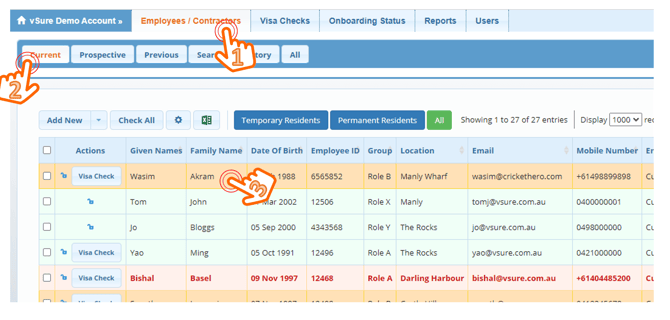
From the Employees / Contractors Tab, select the Employment Status Tab from where you wish to move / update the employment status of the staff, then click on the staff member:
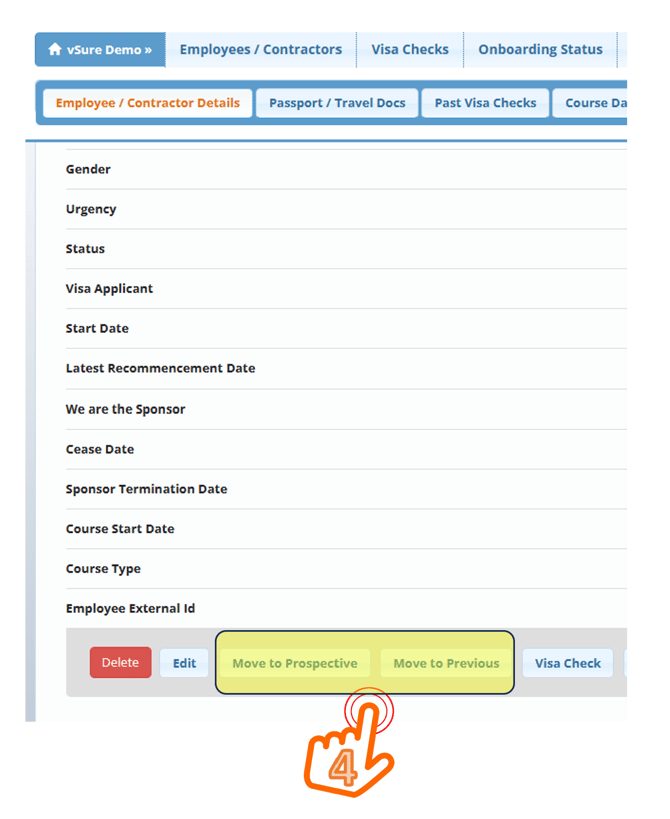
Then simply scroll to the bottom of the Employee's profile and hit the button to Move them to an alternate Employment Status:
Option 2: Move multiple staff by selection
From the Employees / Contractors Tab, select the Employment Status Tab from where you wish to move (update the employment status of) the staff, then click on the box at the start of the row for each staff member you wish to move:
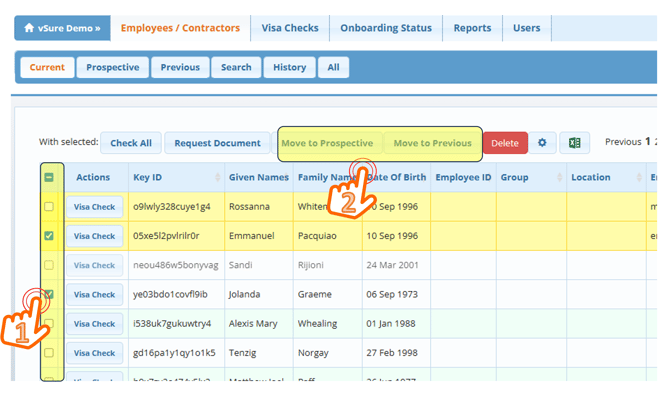
Then simply select the button corresponding with the employment status you want to move them to.
Option 3: Bulk Move / Import to en masse change Employment Statuses
Whilst you can use the standard CSV import to change Employment Statuses, the challenge is you need to fill in ALL the details in the spreadsheet so that you don't upload and overwrite the data already in vSure (such as mobile, email, Location, Group, Passport Number etc).
To make it easy, we created a specific utility, JUST for changing Employment Statuses in bulk.
You can either use:
vSure KeyID - which is vSure's unique identifier of every staff on the platform; OR
Employee ID -generally this aligns to your Payroll or HR System unique identifier.
And what this means is you can use EITHER of these to move people en masse. For example:
- Run a terminations report for the week out of your Payroll system and simply copy and paste in the EmployeeIDs and update their status in vSure to Previous; OR
- Download all staff from vSure to MS Excel, remove all the active employees, then simply copy and paste in the vSure KeyIDs of the terminated staff to move them to Previous;
- etc etc
How to do this:
From the Employees / Contractors Tab, select the Employment Status Tab from where you wish to move (update the employment status of) the staff, then next to the Add New button is a down arrow 🔽 for the additional actions menu:

Select "Bulk Employment Status Update"
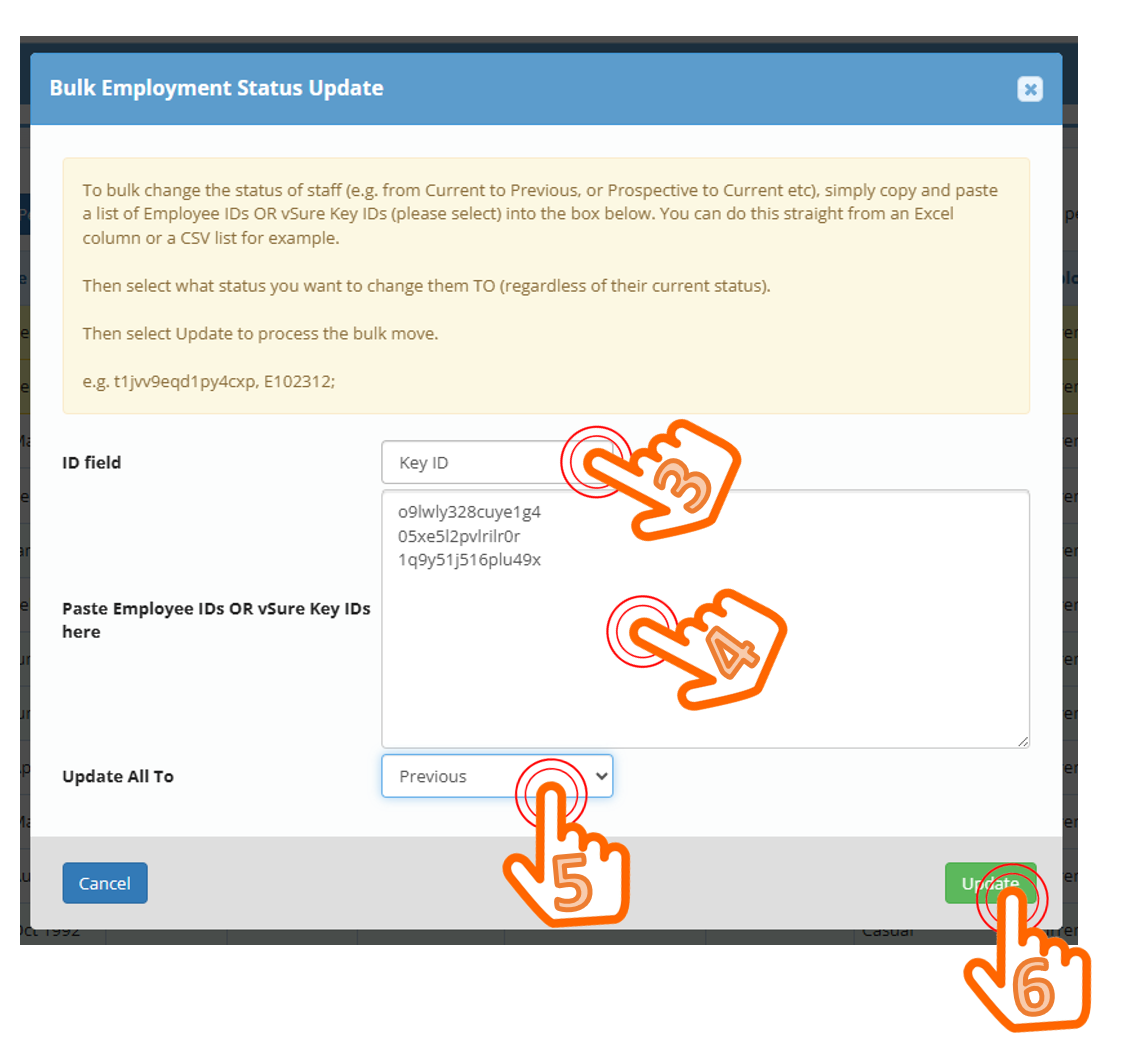
3. Specify whether you are pasting in the vSure KeyIDs OR the EmployeeIDs;
4. Copy and paste (from Excel column, CSV file or where-ever) the list of IDs to be moved in vSure (these can be separated by a new line or comma);
5. Specify what Employment Status you want to change the staff TO;
6. Select the Update button to process the change.
And that's it, it really is that simple!
And don't panic, if you get it wrong, you can move them back just as easily.