

ELMO has evolved from a Learning Management System (LMS) to become a popular HR platform in Australia.
As at February 2026, unfortunately there is no way to integrate with the ELMO Recruitment platform (no APIs or webhooks available). Nonetheless, vSure can integrate from the point of Onboarding through to terminations, with the ELMO HR Core platform.
Set-ups in ELMO
Option 1: No API required
Trigger vSure Self-Onboarding Request FROM an Onboard into ELMO
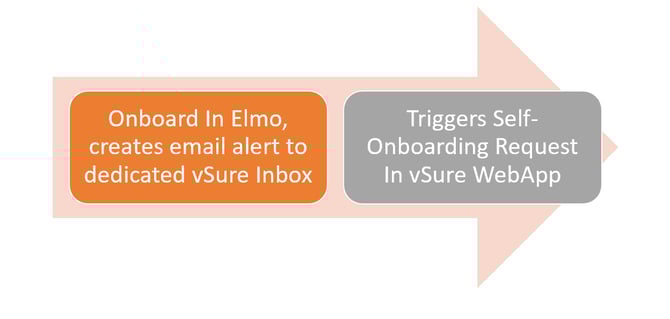
Our V1 ELMO integration (before they offered their API) uses our single data entry onboarding, "trigger onboard from email" feature.
Before you begin, you need to have:
- Registered with vSure and
- Have your unique vSure 'To' email address
eg onboarding-<accountkeyid>@vsure.com.au
Steps on how to register and locate your Account Key ID can be found here.
In ELMO:
1. Create a user with the unique vSure 'To' email address (eg onboarding-<accountkeyid>@vsure.com.au). FYI this will appear within ELMO reports and will absorb an ELMO User Licence.
2. Create Email templates (Administration > General > Email > "New Email Template" button)
-
- Title the Email template as "vSure Onboarding" (or any other name of your choice that is recognisable)
- The Subject of the email is critical for the correct workflow in Vsure. The email subject must be: Onboarding Data
- Content of the email:
-
-
-
[GivenName] ::WORKFLOWASSIGNEEFIRSTNAME::
-
[FamilyName] ::WORKFLOWASSIGNEELASTNAME::
-
[Email] ::WORKFLOWASSIGNEEUSERNAME::
-
[StartDate] ::WORKFLOWASSIGNEESTARTDATE::
-
[EmployeeID] ::WORKFLOWASSIGNEEEMPLOYEENUMBER::
-
-
** Mobile Phone number is not available as a placeholder within this ELMO Email template.
3. Add step within ELMO Onboarding Workflow (for all relevant workflows) at the appropriate step to trigger an email from ELMO to Vsure. (Administration > Onboarding > Workflow Templates).
-
Workflow Step Type = Email
-
Email = Title of Email from Step 2 (e.g."vSure Onboarding")
-
To = vSure User Name created in Step 1 (eg onboarding-<accountkeyid>@vsure.com.au)
-
cc (optional) = Whoever appropriate if desired.
-
Schedule = Disabled
4 Ensure Workflow step is connected into workflow at the appropriate time.
5. Save workflow (validation will occur to ensure correct configuration and will alert of any issues)
6. Repeat the above for all required workflows
7. Assign Onboarding workflow to relevant onboarding employees as per usual.
Option 2: Using the ELMO API & Webhooks
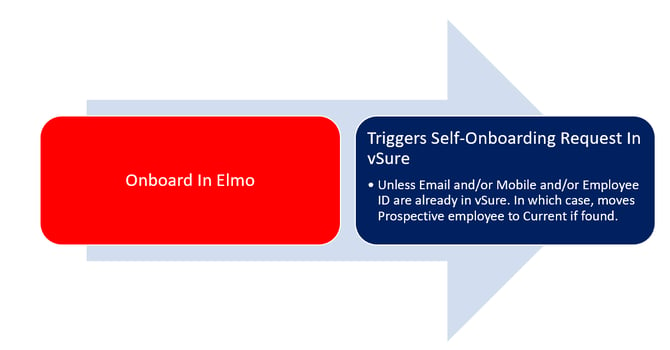
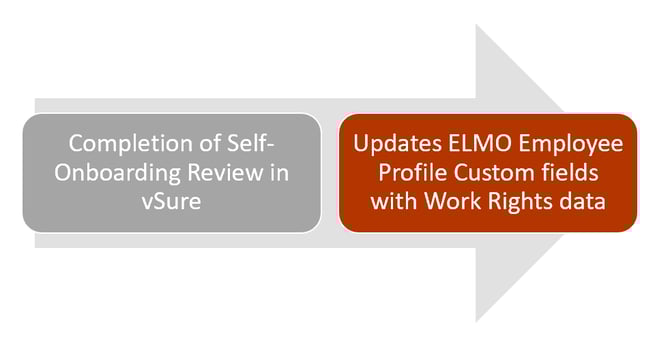
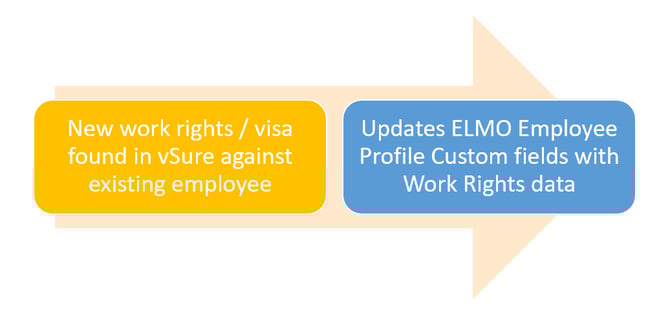
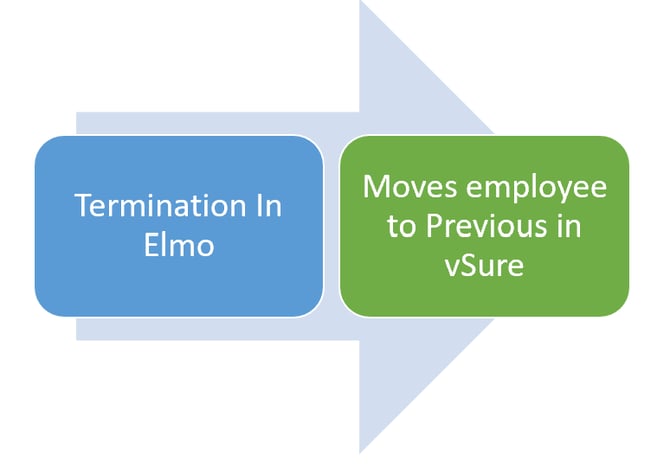
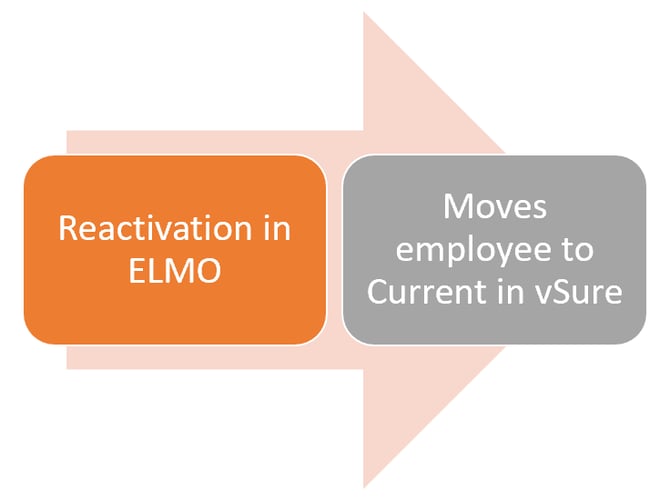
There are multiple points of integration available via the ELMO API and Webhooks. You can activate all or some of these:
Custom Fields
In order for vSure to send data to the employee profile in ELMO, it is necessary for ELMO customers to ask ELMO Support to add 3 Custom Fields:
- Work Rights Status - The field is a string (Text). - The max length is 300. - Not Compulsory.
- Visa and Conditions - The field is a string (Text). - The max length is 300. - Not Compulsory.
- Work Rights Expiry Date - The field is a string (Text) - The max length is 10. - Not Compulsory (Can be blank for Citizens and Bridging Visas etc) - The pattern should be: dd/mm/yyyy
API Key
An API Key, is effectively permission to talk to your ELMO system application to application. vSure requires the API key to set-up
Log into ELMO and create an API key on the Administration | Integration page.
Webhooks
A webhook is an automated, event-driven message that sends real-time data from one application to another immediately when a specific event occurs.
vSure uses ELMO Webhooks to keep vSure in sync with ELMO.
Log into ELMO and create a Webhook on the Administration | Integration page.