
A common issue with staff who move onto Bridging Visas is VEVO does not show the Bridging Visa until the existing substantive visa has expired.
This means staff remain in "Critical Status" even if you know vSure will find the Bridging Visa when the existing visa expires.
And if you integrate vSure to your rostering system, it can mean you can't roster them past the existing visa expiry date.
vSure offers a solution. By collecting the Bridging Visa Grant letter, which the visa holder has been given by Home Affairs, vSure can now create a 2 week temporary visa, that allows you to move them out of critical status and continue to roster them, knowing vSure will find the bridging visa the day after the substantive visa expires.
How To
You have two options:
- Request the Bridging Visa Grant Letter from the employee; OR if you already have the visa grant letter
- Upload to the Documents tab against the employee
Request the Bridging Visa Grant Letter from the employee
You can collect the Bridging Visa Grant letter using the "Request Document" feature in vSure.
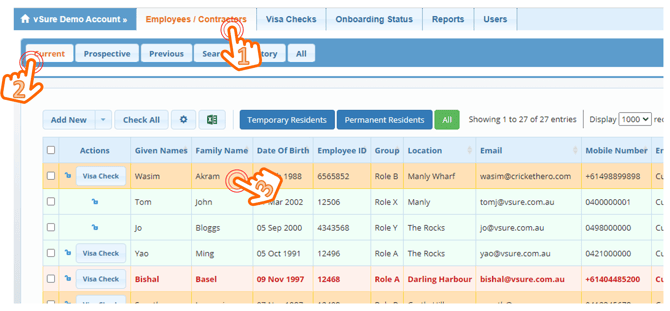
To request a document from an employee, start from the Employees/Contractors - Current Tab:
1. Employees/Contractors | Current | Click on the staff member's name
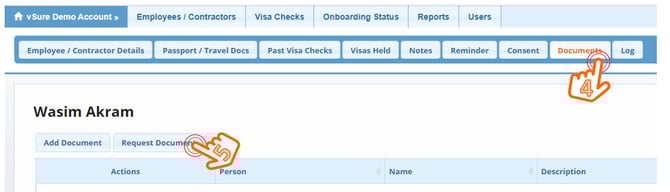
2. Navigate to the Documents Tab and Click "Request Document"
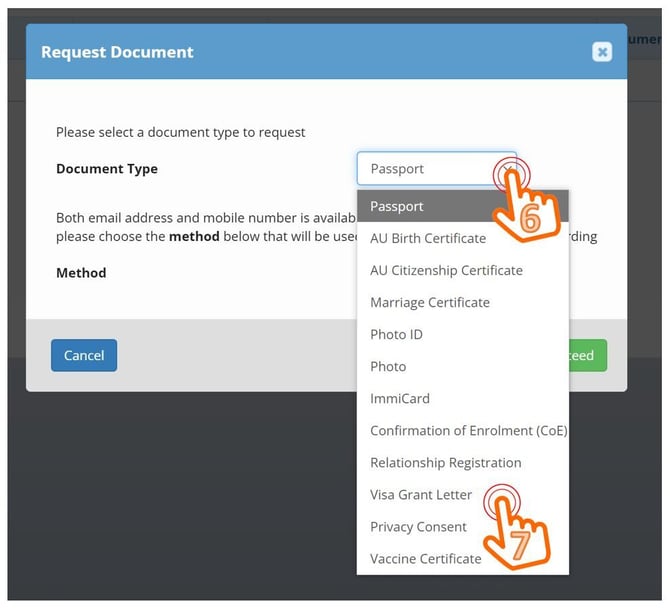
3. Select Document you wish to collect - Visa Grant Letter
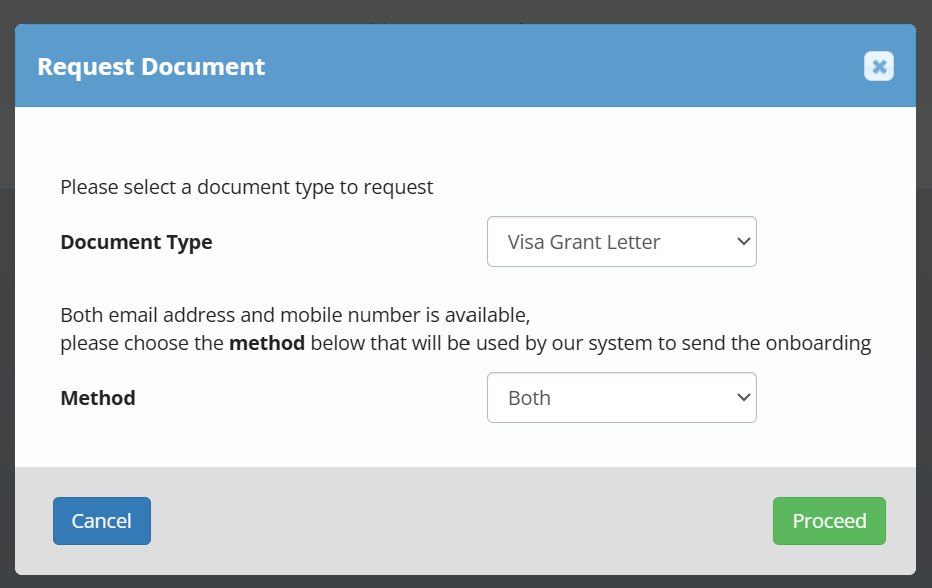
4. Then choose Request Method (Email or SMS or Both) & Proceed
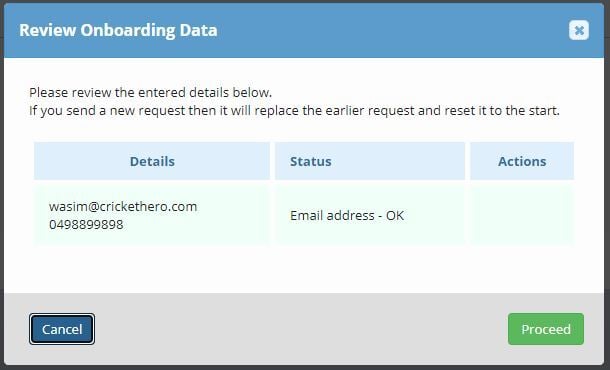
5. The System will check for existing requests - Proceed
This allows you to discard previous requests OR stop if you don't need to send a new request
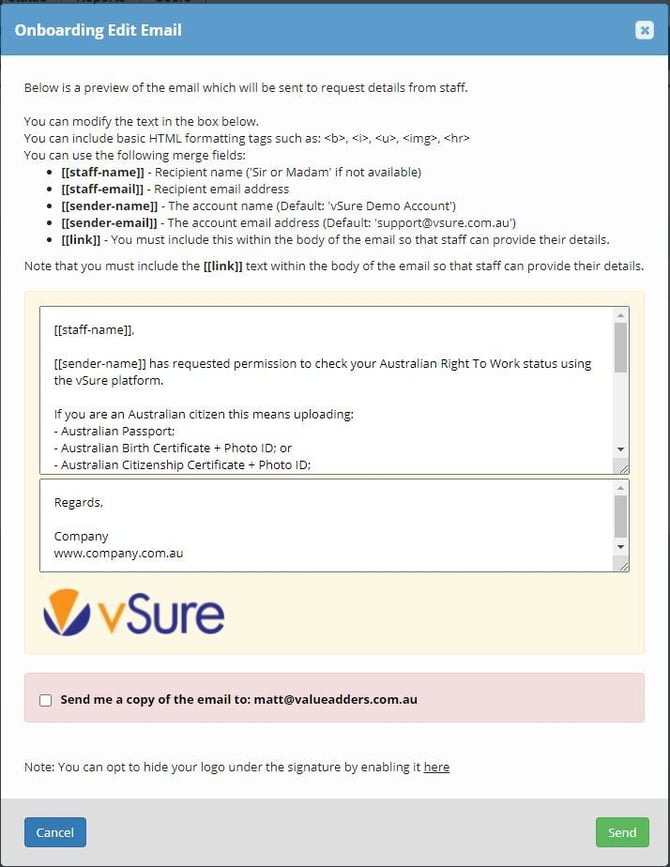
6. Then edit the text of the SMS and/or Email and Send
7. Employee Uploads Visa Grant Letter
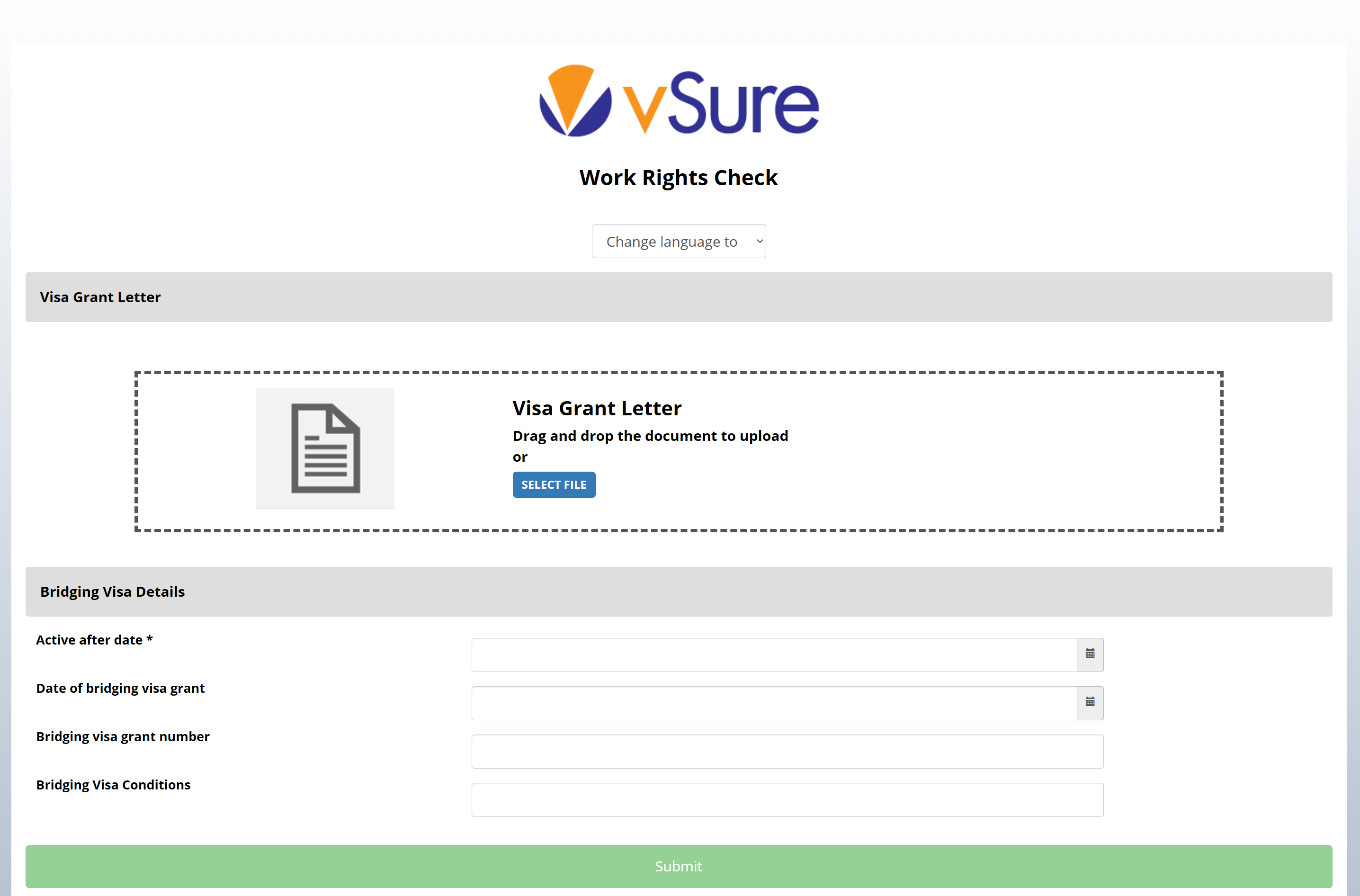
The data will be stripped from the PDF/image.
They will get a thank you once submitted:

8. Employer Completes the Review
Making sure the data is correct
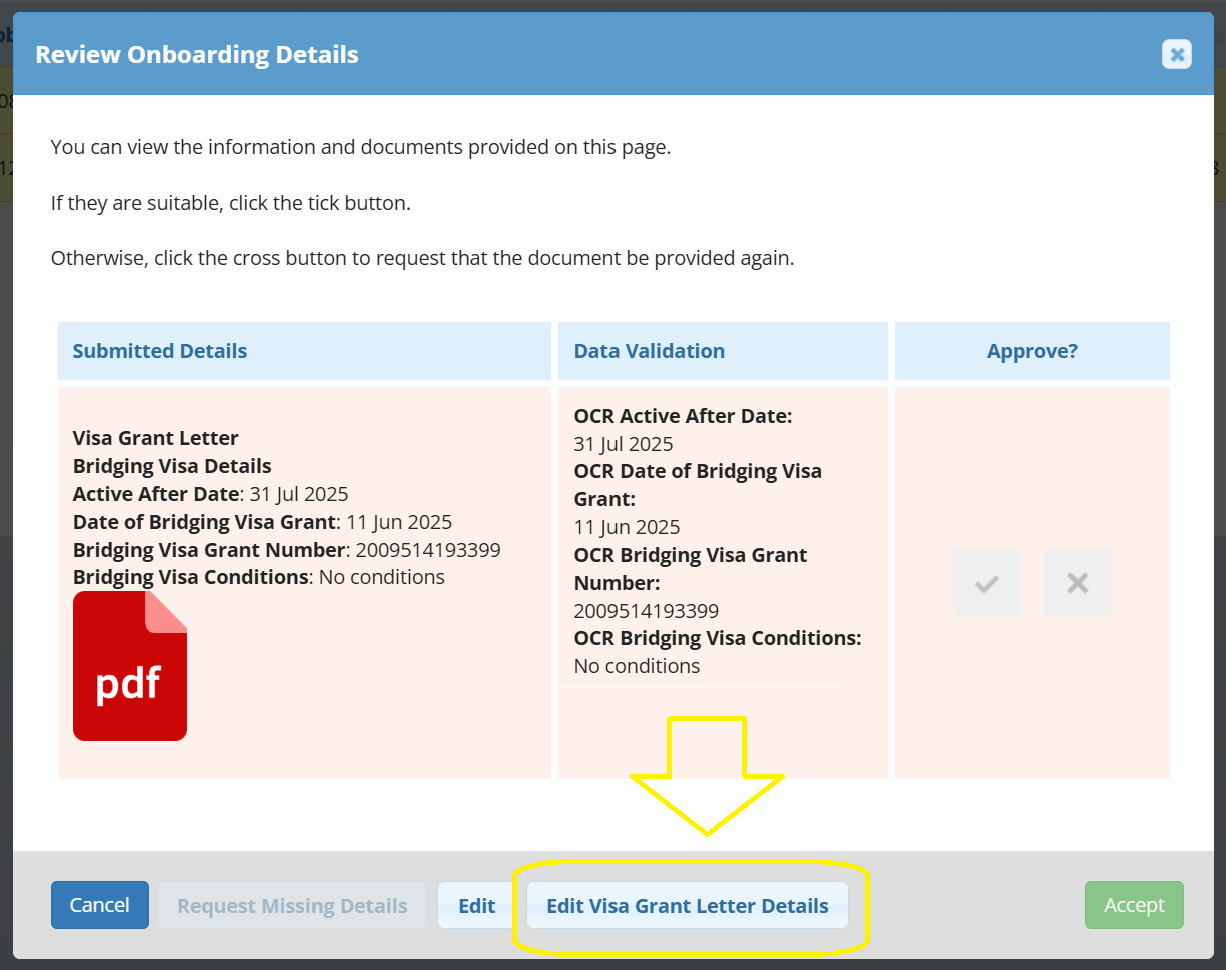
You can edit the submitted data using the specific Edit Button for the Visa Grant Letter.
When you tick and accept:
10. The Document will be saved to the employees Documents Tab
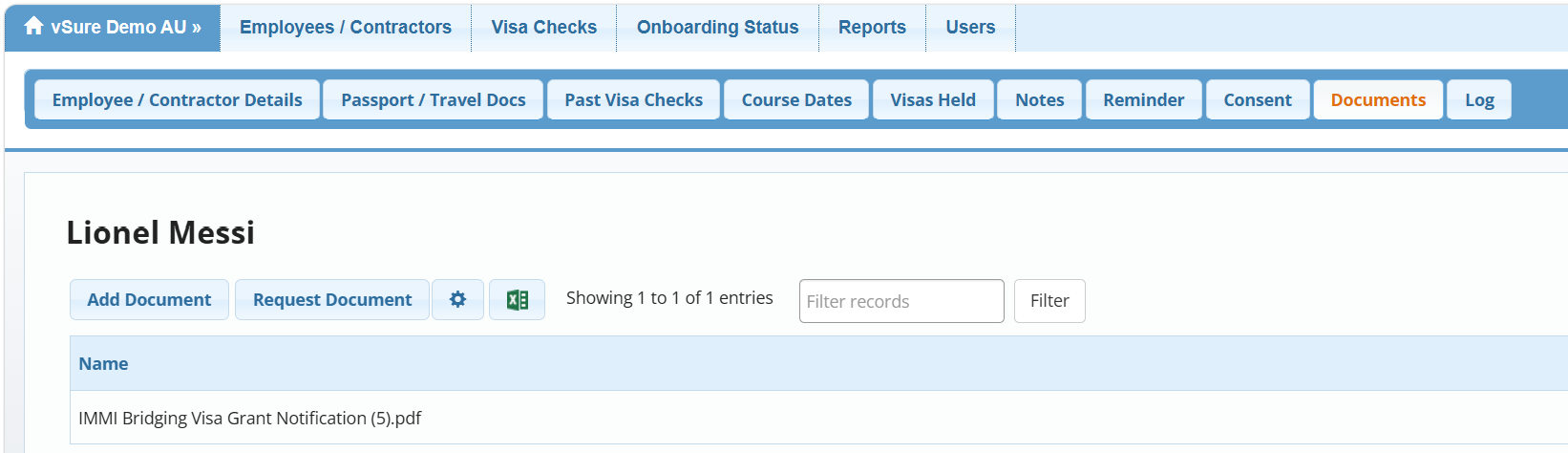
11. AND create a temporary 2 week visa, extending the work rights expiry date and moving them out of critical

Manually add the Bridging Visa Grant Letter to the employee's profile
1. Employees/Contractors | Current | Click on the staff member's name
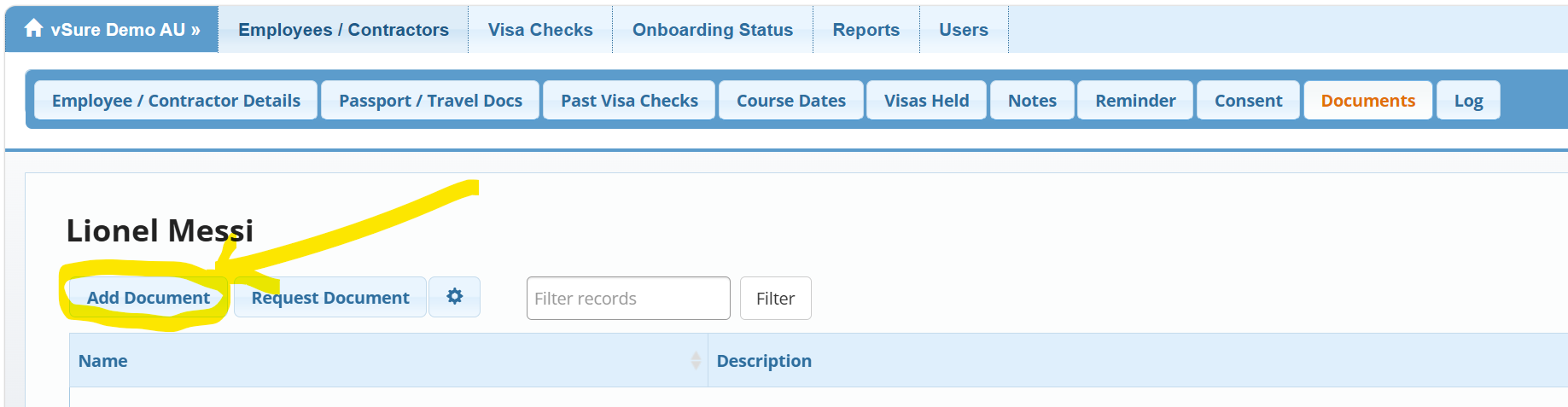
2. Navigate to the Documents Tab and Click "Add Document"
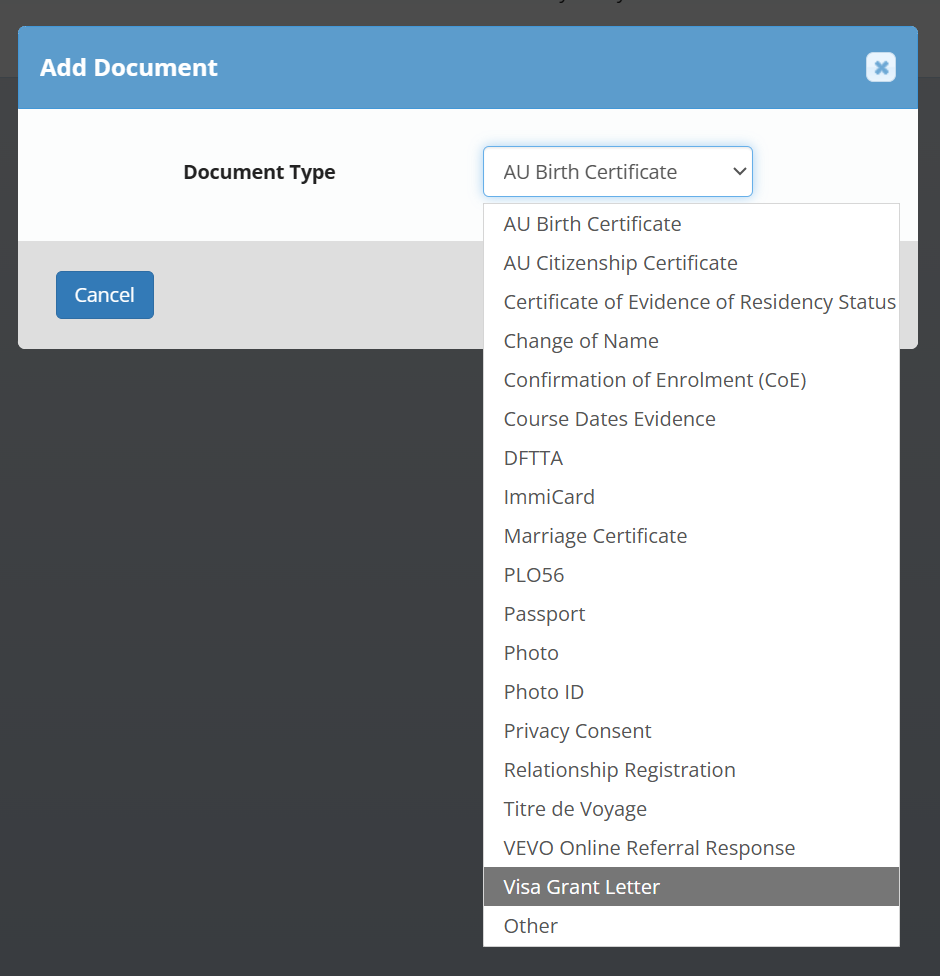
3. Select Visa Grant Letter from the list and select Next
4. Upload / Drag and Drop on the Visa Grant Letter
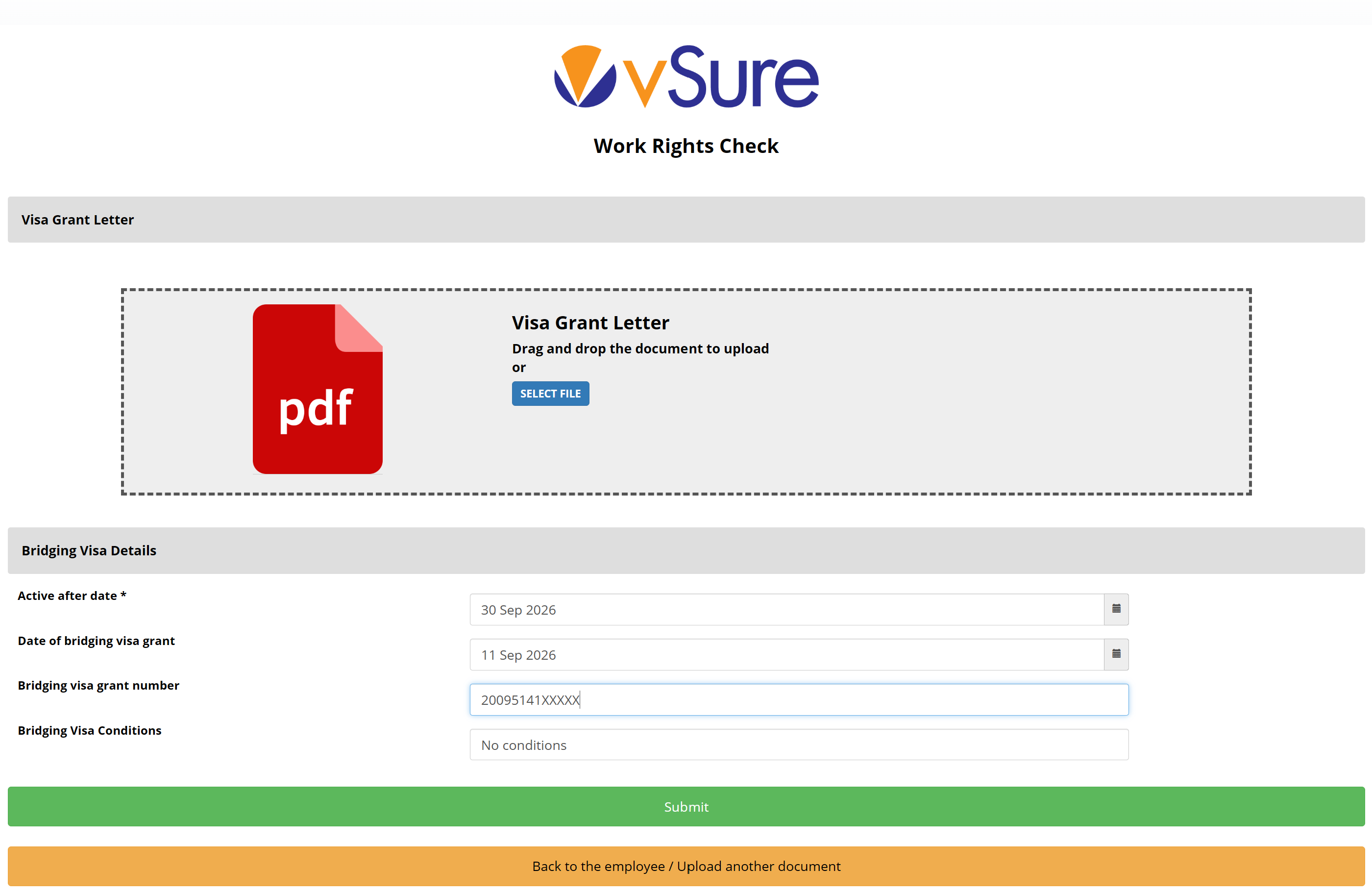
Make sure the data is correctly entered and Submit, then

Click Back to the employee / Upload another document
5. The Document will be saved to the employees Documents Tab
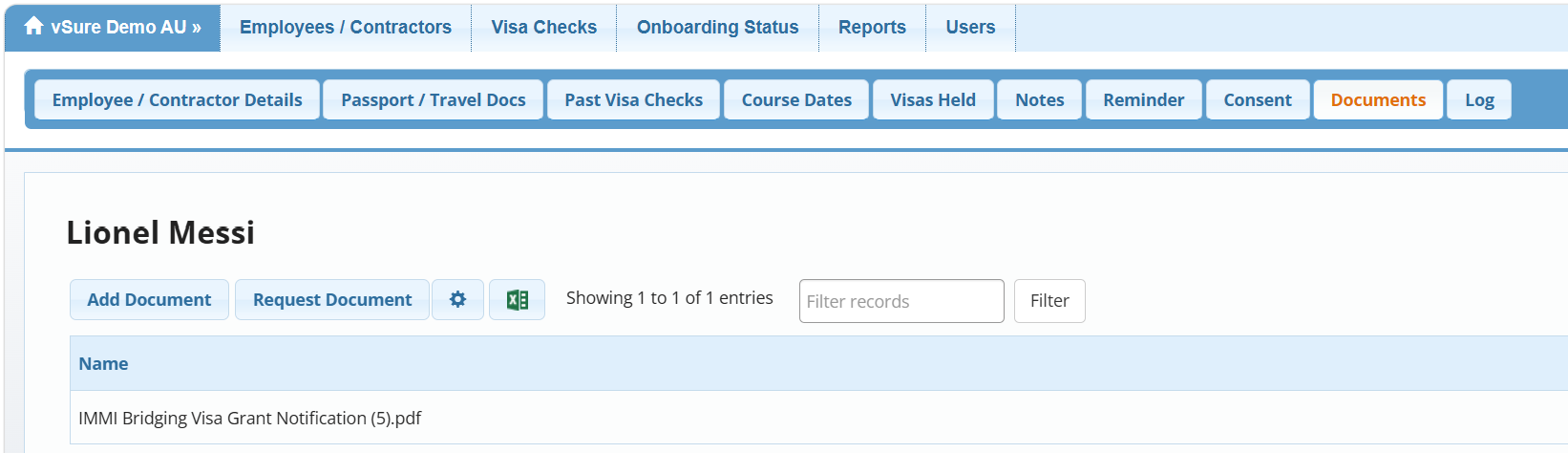
6. AND create a temporary 2 week visa, extending the work rights expiry date and moving them out of critical
