
Adding Account level users starts by simply opening the relevant account and following the standard article on adding users.
All steps follow, login to the vSure White-label account, then:
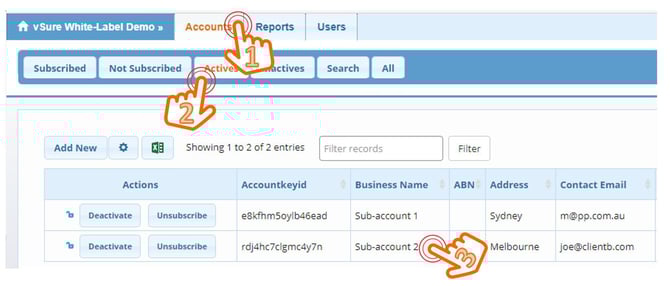
1. Accounts
From the main top level menu select accounts.
NOTE: if you are subscribed to the reports for the specific Account, you will see the account on the Subscribed tab. Else you can navigate to the Actives tab to see all active accounts.
2. Click on the Business Name
Each row is an active link, allowing you to drill down on the specific account.
The next steps come from the standard (Account level) user set-up:
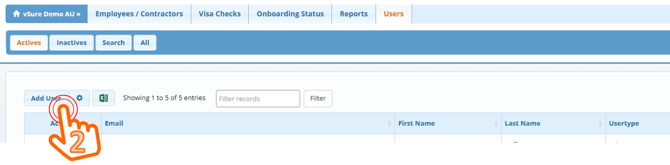
3. Users

4. Active Users Tab | Add User
5. Complete the details:
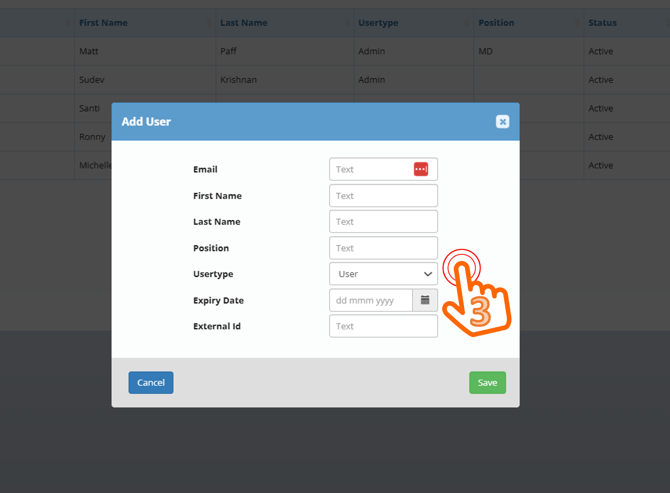
- Email address: must be valid - an email will be sent to this address before verifying the account;
- First Name;
- Last Name;
- Position;
- User Type:
- Admin: has access to all account and user set-ups and all features of vSure;
- User: has limited access, including the ability to add/manage visa holders and receive scheduled reports;
- Expiry Date: can be used for temporary staff or management of staff access over time;
6. Select Save
On save:
- A user is added to the "Inactives" tab;
- The user is emailed a verification to: click on a link; create a password; and login for the first time;
Once the user has clicked on the verification link, created password and logged in, they will move automatically to the "Active" users tab.