
1. My Account | Logo Settings
2. Choose File
Note - File format: .jpg is preferred but we can also process .png, .gif, and .bmp files. File size: 10Mb max
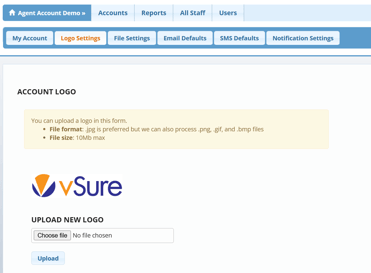
3. Click Choose File - Navigate to a saved copy of the logo select it
4. Click Open
5. Upload the logo

6. Select Edit under LOGO SETTINGS

7. Change drop down to Yes/No & Save Logo Settings
Display Logo in Email Signature = Outbound Emails such as Self-Onboarding Emails
Display Logo in Onboarding = Logo will be shown in the self onboarding workflow
NOTE: No means the vSure logo will be displayed.